Laptop Trackpads Explained: Haptic vs Mechanical, and Why Precision Matters More Than Size
Spec sheets obsess over CPU cores, RAM, and display resolution, but ask anyone who's used a genuinely bad laptop trackpad for a week and they'll tell you it can ruin the entire experience of an otherwise excellent machine. A trackpad that misregisters clicks, jitters under a light touch, or refuses to recognize a two-finger scroll reliably turns every single task into a small daily frustration. Understanding what actually separates a great trackpad from a mediocre one, and why the size on a spec sheet barely tells you anything, makes it a lot easier to judge one before buying.
Haptic vs mechanical: the fundamental split
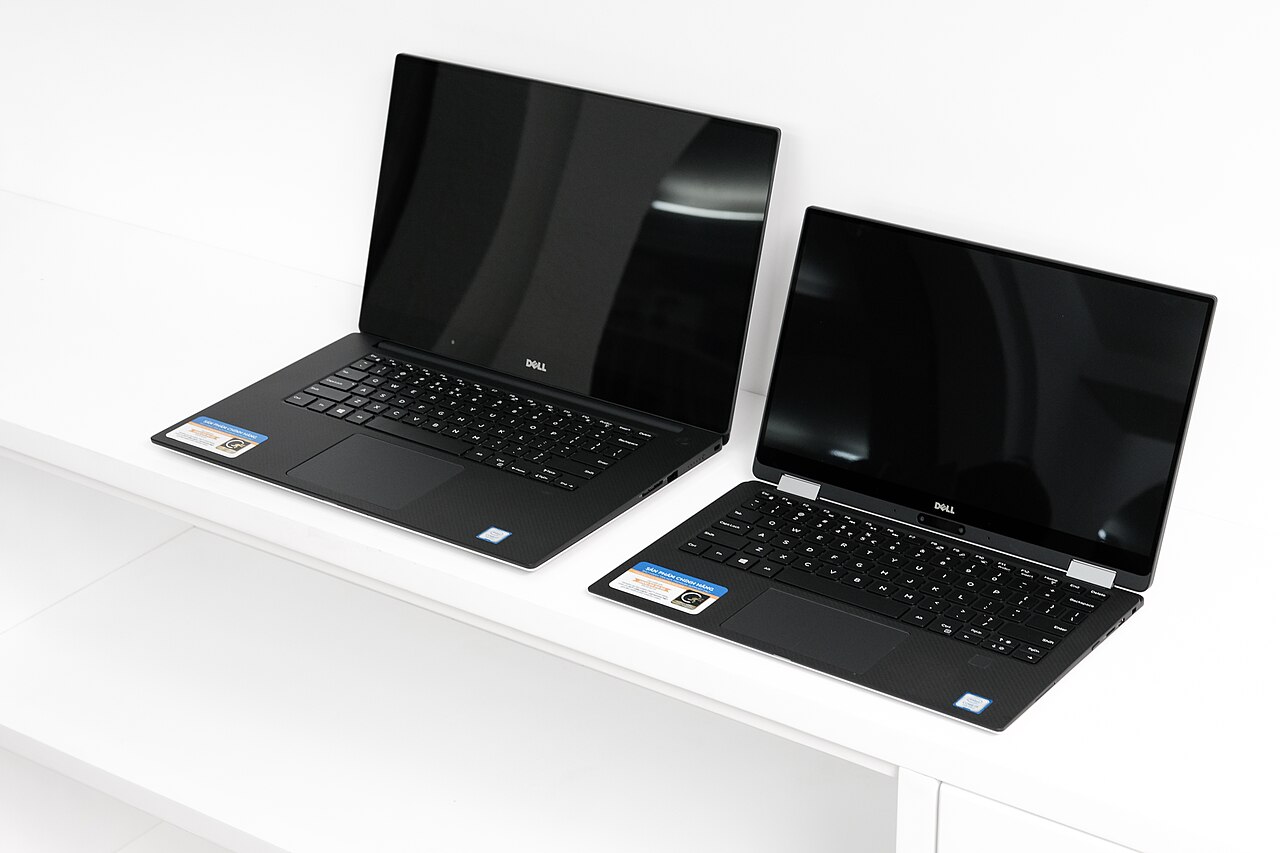
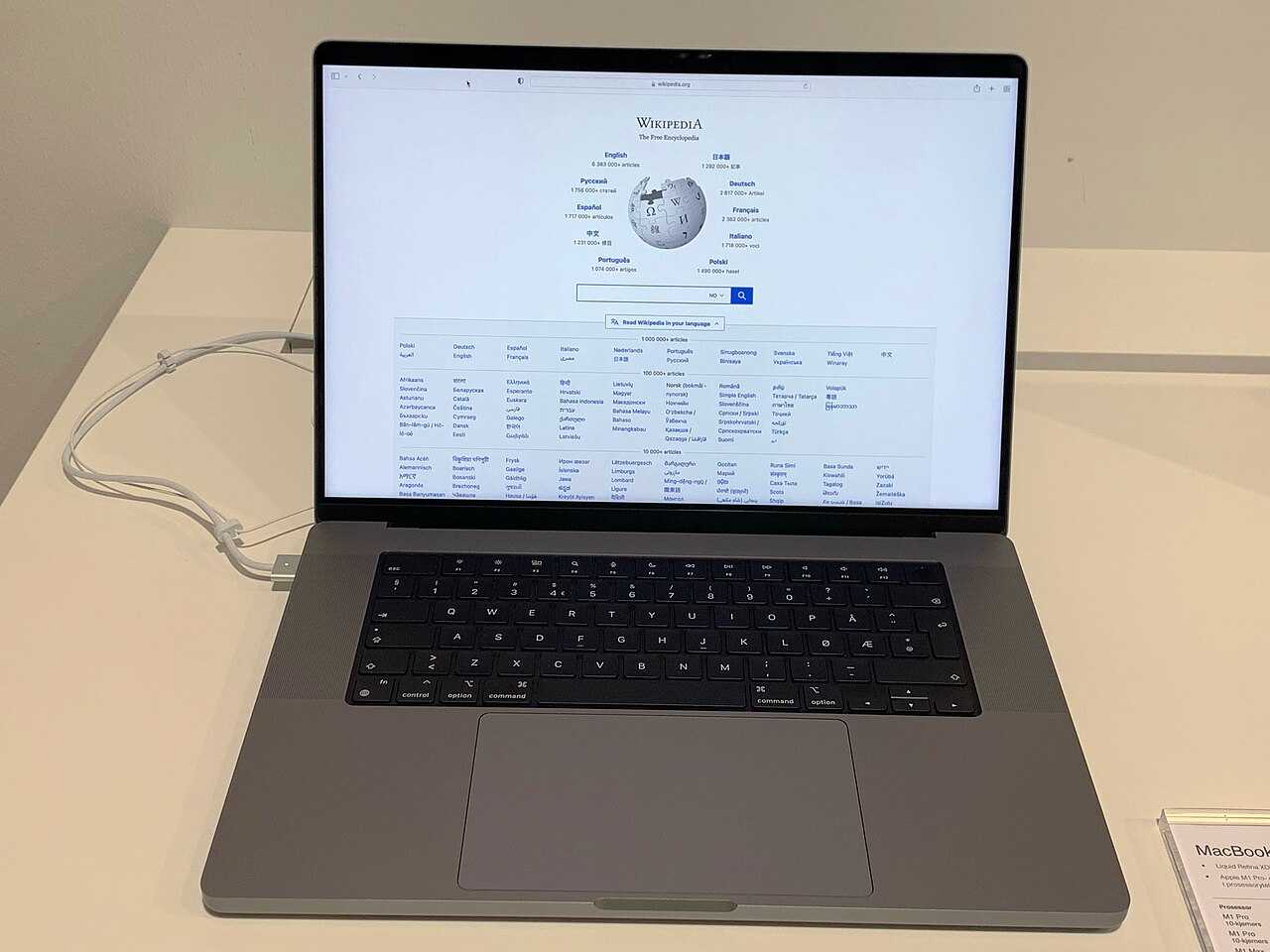
Older and budget laptops almost all use mechanical trackpads, where the entire pad physically pivots on a hinge and a real switch underneath registers the click when you press down hard enough. This works, but it has real limitations: the bottom edge of the pad, closer to the hinge, often requires noticeably more pressure to click than the top edge, and the whole surface has to be able to physically move, which limits how thin the laptop's chassis can be at that point. Premium laptops, and now an increasing number of midrange ones, use haptic trackpads instead, where the surface doesn't physically move at all. Underneath sits a pressure sensor and a small actuator, similar in concept to the taptic engine in a smartphone, that simulates the feeling of a click using a precisely tuned vibration the instant it detects enough downward pressure. Because there's no physical hinge or moving parts, click force feels completely uniform across the entire surface, the pad itself can be sealed against dust and spills more effectively, and the laptop's chassis around it can be thinner since nothing underneath needs room to flex.
The tradeoff is that a haptic trackpad needs battery power to generate its click feedback, meaning it can't be clicked at all when the laptop is fully powered off, which matters in a few edge cases like clicking through a BIOS boot menu before the operating system and its haptic drivers have loaded. Most laptop makers work around this with a fallback mechanical press built into the very bottom of the haptic pad for exactly those situations, so it's rarely a practical problem in daily use.
Why surface material and precision matter more than size
A trackpad's glass or textured-composite surface material has a bigger real-world impact than most buyers expect. Glass surfaces, standard on premium laptops, offer low friction and consistent glide regardless of how dry or slightly damp a fingertip is, while cheaper plastic surfaces can feel sticky or inconsistent, especially after months of use as the coating wears from repeated contact. Precision also depends heavily on the underlying sensor and the driver software interpreting its signals, not just physical size. A large trackpad with an imprecise sensor or poorly tuned palm-rejection software is worse to use daily than a smaller trackpad that tracks accurately and never misinterprets an accidental touch as an intentional click, which is a common failure point on lower-cost laptops where the trackpad hardware and drivers get far less engineering attention than the display or the chip.
Palm rejection: the unglamorous feature that matters most
Palm rejection, the ability of the trackpad and its software to ignore accidental contact from the heel of your hand or wrist while typing, rarely appears on a spec sheet at all, yet it's often the single biggest determinant of whether a trackpad feels reliable during real typing sessions. Poor palm rejection causes the cursor to jump unpredictably or, worse, register an accidental click that moves text, closes a tab, or drags a file somewhere unintended, all while you were simply resting your hand naturally to type. Good palm rejection depends on a combination of trackpad sensor quality, its physical placement relative to the keyboard, and software that can distinguish between an intentional fingertip tap and the broader, lower-pressure contact of a resting palm. This is one of the areas where thorough hands-on reviews genuinely matter more than spec comparisons, since palm rejection quality is almost impossible to judge from a photo or a features list.
Gesture support and why software matters as much as hardware
Multi-finger gestures, three-finger swipes between virtual desktops, pinch-to-zoom, two-finger scroll with inertia that mimics a smartphone, have become central to how people actually navigate a modern laptop without reaching for the keyboard or an external mouse. The quality of gesture recognition depends heavily on operating system-level drivers working in tandem with the trackpad hardware, which is part of why trackpads on laptops running the manufacturer's own tightly integrated software, similar to how Apple controls both the hardware and macOS gesture drivers end to end, tend to feel noticeably more consistent than third-party Windows trackpads relying on more generic driver support. This gap has narrowed significantly on premium Windows laptops in recent years as manufacturers have invested more in precision touchpad drivers, but it remains a real, testable difference worth checking in hands-on reviews rather than assuming all trackpads with similar gesture feature lists behave the same in practice.
What this means when you're comparing laptops
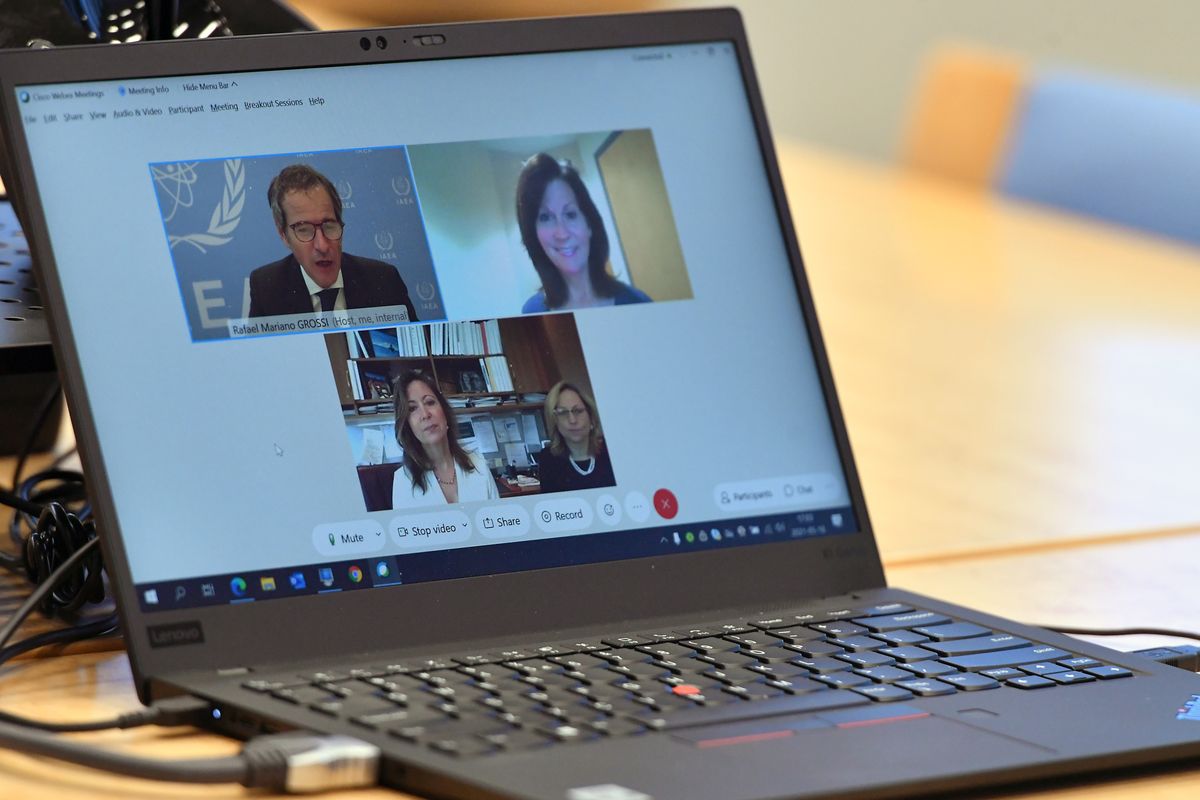
If you plan to use a laptop primarily on the go without an external mouse, on a plane, at a coffee shop, in a lecture hall, prioritizing trackpad quality over a marginal jump in CPU benchmark score is often the better trade for daily comfort, since a good processor rarely bottlenecks everyday tasks but a bad trackpad creates friction in literally every single interaction with the machine. It's worth checking whether reviews specifically mention haptic feedback tuning, palm rejection reliability, and gesture consistency rather than just trackpad dimensions, since a physically larger pad with mediocre software underneath is a worse daily-driver than a smaller, well-tuned one. This same principle, that unglamorous everyday-use details often matter more than headline specs, shows up elsewhere on a laptop too, including in how much the keyboard's key travel and the laptop's actual real-world battery life differs from its spec sheet number. For business and productivity-focused laptops specifically, where hours of daily trackpad use is unavoidable, it's also worth reading our look at what makes the ThinkPad X1 Carbon a business laptop everyone else copies, since trackpad and input quality is consistently one of the areas that line of laptops gets singled out for.
The bottom line
Trackpad quality is genuinely difficult to judge from a spec sheet because the numbers that matter most, palm rejection accuracy, click force consistency, gesture recognition reliability, simply aren't numbers manufacturers publish. The physical size and the haptic-versus-mechanical distinction are useful starting signals, but the only reliable way to know whether a trackpad will hold up to daily use is a hands-on test or a detailed review that specifically evaluates these unglamorous details rather than just checking a features box.